
Introduction
Facing a non-responsive Dell Chromebook can be frustrating, especially for those who rely on it for daily academic or professional tasks. Whether your device shows absolutely no signs of life or gets inexplicably stuck during startup, understanding the root of the problem is essential. This guide walks you through systematic troubleshooting steps aimed at identifying and fixing the common issues responsible when your Dell Chromebook won’t turn on.

Immediate Checks for Power Issues
The first step in troubleshooting a Dell Chromebook is ensuring the basics are adequately checked. Simple power issues are often at the root of the problem. Begin by verifying whether your Chromebook is properly connected to a functioning power source. Confirm that the power adapter and cables are free from damage and are connecting securely.
-
Verify Power Supply and Adapter Functionality: Ensure the power outlet being used is functioning correctly by testing it with another device. Inspect the power adapter and cable for any visible signs of wear or damage. If available, try using a different adapter to rule out issues with your current one.
-
Ensure the Device is Connected to an Active Power Source: Confirm that the power cord is securely connected to both the Chromebook and the power outlet. Look for any indicators such as LED lights on your Chromebook which might provide visual clues on the power status.
Once you’ve ensured that power is flowing correctly, and the Chromebook remains unresponsive, performing a reset can often resolve the issue.
Conduct a Hard Reset on Your Dell Chromebook
If the power supply checks out and the Chromebook still won’t respond, performing a hard reset could be the solution. This process can refresh the Chromebook’s hardware system, providing it a clean slate to start.
-
Safe Steps to Perform a Hard Reset: First, ensure the Chromebook is completely shut down. Hold the refresh button and tap the power button simultaneously. Release both buttons once the Chromebook begins to boot up.
-
Observing Results and Next Steps: After performing the reset, if the Chromebook boots up successfully, check for any system notifications or pending updates. If it remains unresponsive, the issue might be related to the battery or internal hardware components.
With the possibility of a hardware reset ruled out, addressing the battery is the next logical step.
Battery Troubleshooting Tips
A defective or malfunctioning battery may also be the reason a Chromebook does not turn on. Therefore, it’s crucial to inspect and test the battery’s health and connection integrity.
-
Confirm Battery Seating and Charging Status: Turn off the Chromebook and, where accessible, remove the battery panel to check that the battery is properly seated. Allow the Chromebook to charge for several hours while it is turned off before attempting to power it back on.
-
Testing with Alternative Charger Options: If possible, borrow a compatible charger from another device to see if your Chromebook displays any signs of life. Observe any changes in charging indication or device response.
After ruling out potential battery issues, it’s prudent to investigate any hardware concerns next.
Investigate Hardware Concerns
Hardware issues, although less frequent, can often be the underlying cause when a Chromebook refuses to turn on. Identifying these problems as early as possible can prevent additional unnecessary damage.
-
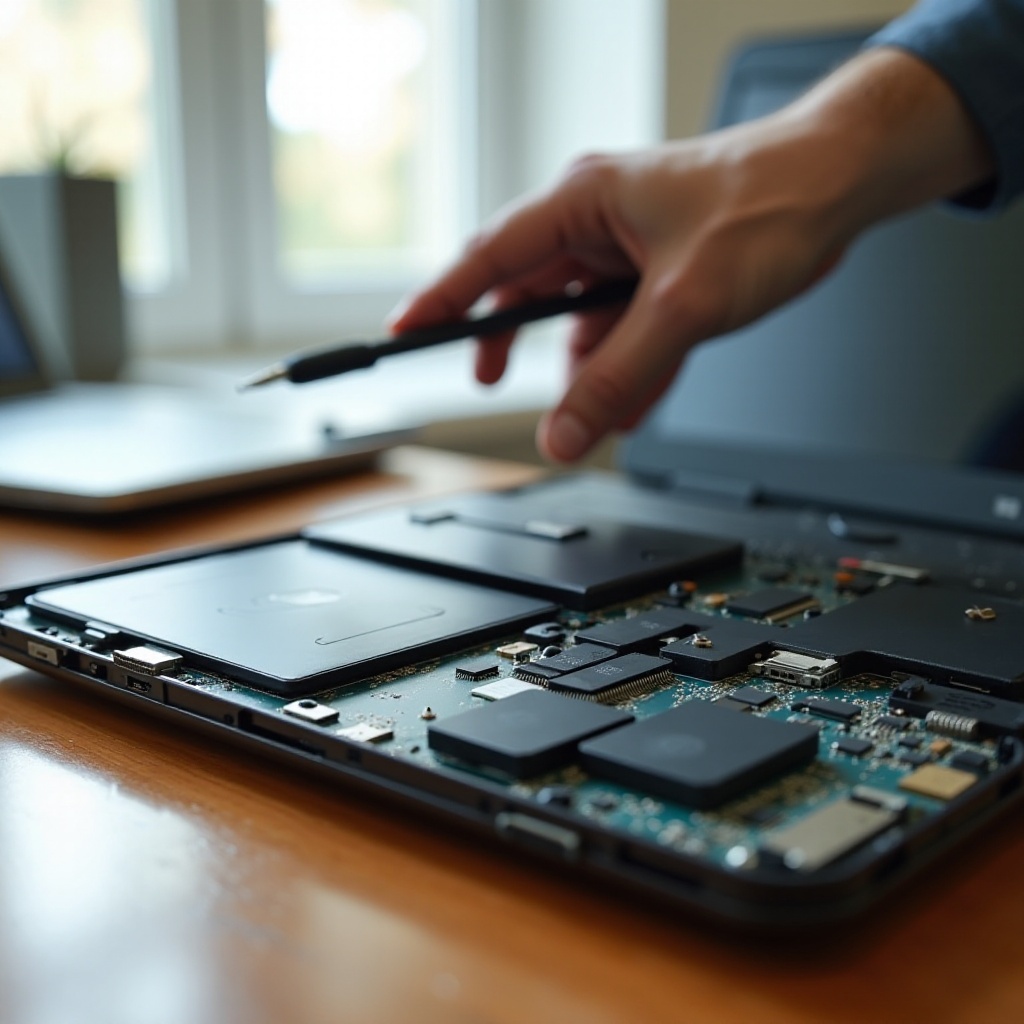
Inspect for Signs of Physical Damage: Check the Chromebook’s exterior for any visible signs of wear or damage, such as cracks in the casing or dents. If experienced, observe the internal components for any loose connections when carefully opening devices.
-
Basic DIY Checks for Internal Components: Carefully ensure all visible components, such as RAM or storage modules, are seated correctly if accessible. Reassemble the device meticulously, ensuring all screws and panels are properly secured.
Physical hardware checks completed; software or OS issues can sometimes cause these startup problems, leading us to the next crucial section.
Resolve Software and OS Issues
An unstable operating system or software glitch can hinder a Chromebook’s ability to start properly. By addressing these software concerns, your device can be restored to normal operation.
-
Check for Operating System Updates: If the device manages to turn on at any time, navigate to settings and check for any available ChromeOS updates. Restart the Chromebook to apply updates immediately upon completion.
-
Use Powerwash for Software Fixes: Always ensure essential data is backed up onto a cloud service or an external device. Proceed to Settings > Advanced > Reset settings, and select “Powerwash.” Follow on-screen prompts to reset the Chromebook, which can resolve persistent software-related problems.
With steps for both hardware and software issues covered, should the problem persist, further action might require expert help.
Seek Professional Help and Consider Repairs
If your Chromebook remains unresponsive after all attempts, professional diagnostics might be necessary. External damage or more sophisticated internal problems may require the expertise of a trained technician for proper resolution.
-
When to Contact Support or Visit a Repair Center: If the device is still under warranty, contact Dell’s customer support for potential service options. Alternatively, visit an authorized repair center for a more detailed evaluation if the warranty does not cover your device.
-
Understanding Warranty and Repair Costs: Review your existing warranty conditions for coverage details about necessary repairs or replacements. Obtain repair estimates from reputable service centers to ensure quality assurance without undue expenses.
Following these outlined steps, most users will find the solution to a non-responsive Dell Chromebook. Acting promptly and methodically can often restore functionality without excessive downtime, ensuring a more extended device lifespan.
Frequently Asked Questions
How can I tell if my Chromebook battery is dead?
Check if your device displays any charging indicators when connected. If there’s no LED light or the device doesn’t boot after charging, the battery might be the issue.
What is the difference between a hard reset and a Powerwash?
A hard reset reboots the hardware system without affecting your data, while a Powerwash restores the Chromebook to factory settings, erasing all user data.
Can I fix my Chromebook myself without voiding the warranty?
Basic troubleshooting won’t void your warranty, but opening the device or replacing parts might. Always check your warranty terms and conditions.