
Introduction
Connecting a PlayStation 3 (PS3) to your TV is crucial for a complete gaming experience. With the right steps and equipment, you can get everything set up quickly and efficiently. This guide walks you through the necessary steps, the equipment you’ll need, and solutions to common issues, aiming to make the connection process easy and enjoyable.
Understanding Your Setup
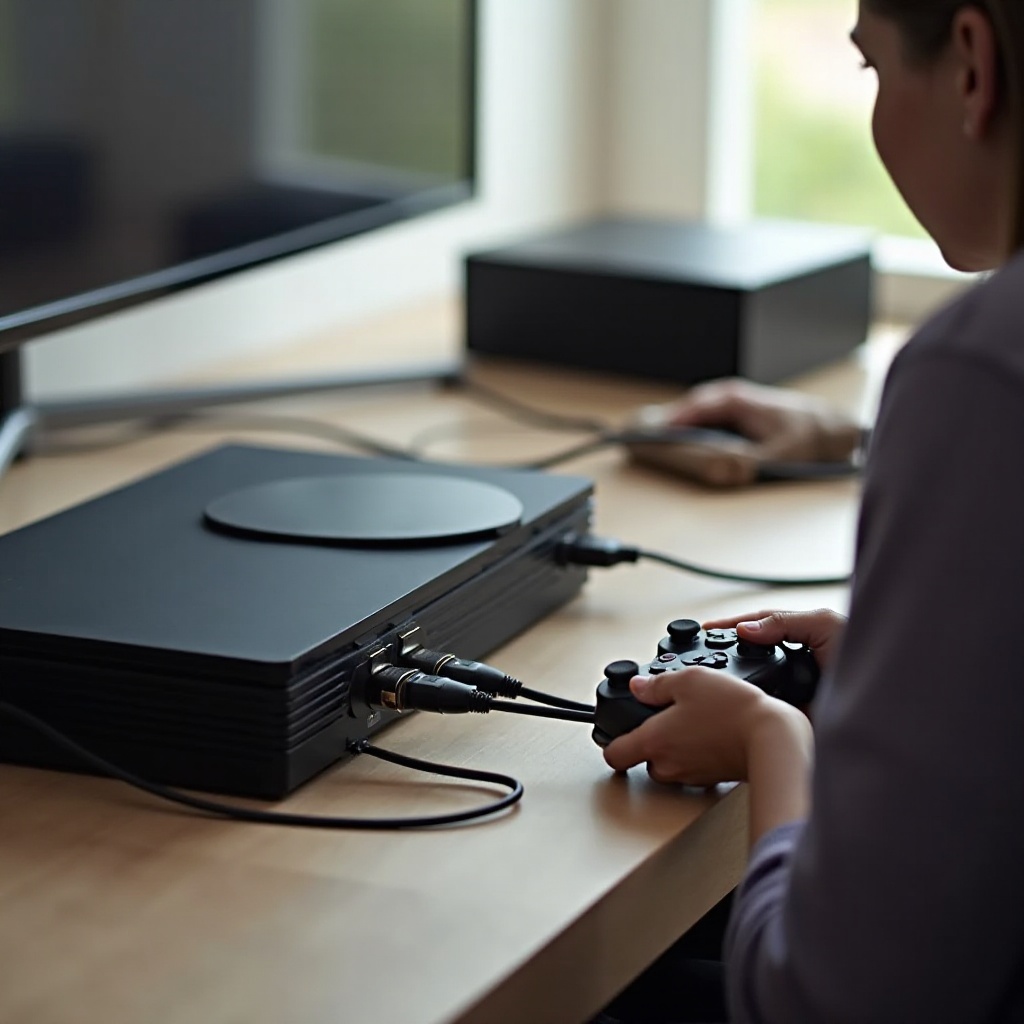
Before attempting to connect your PS3, understanding your current setup is vital. Identifying the ports and cables you have will facilitate the process and help avoid compatibility issues.
Identifying TV and PS3 Ports
Begin by identifying the available ports on your TV and PS3. Most modern TVs and PS3 consoles come equipped with HDMI ports, while older models might feature AV or S-Video ports. Check the back of both devices to locate these ports.
Required Cables and Accessories
Next, gather the necessary cables and accessories. You will typically need:
- An HDMI cable (for HD connection)
- An AV cable (for older connections)
- Power cables for both the PS3 and the TV
- A remote control for adjusting TV settings
Understanding your setup will streamline the connection process. This clarity will be beneficial when choosing the right connection method.
Connection Methods
Once you understand your setup, it’s time to explore the various connection methods available for your PS3. Each method caters to different setups and preferences.
HDMI Connection for Best Quality
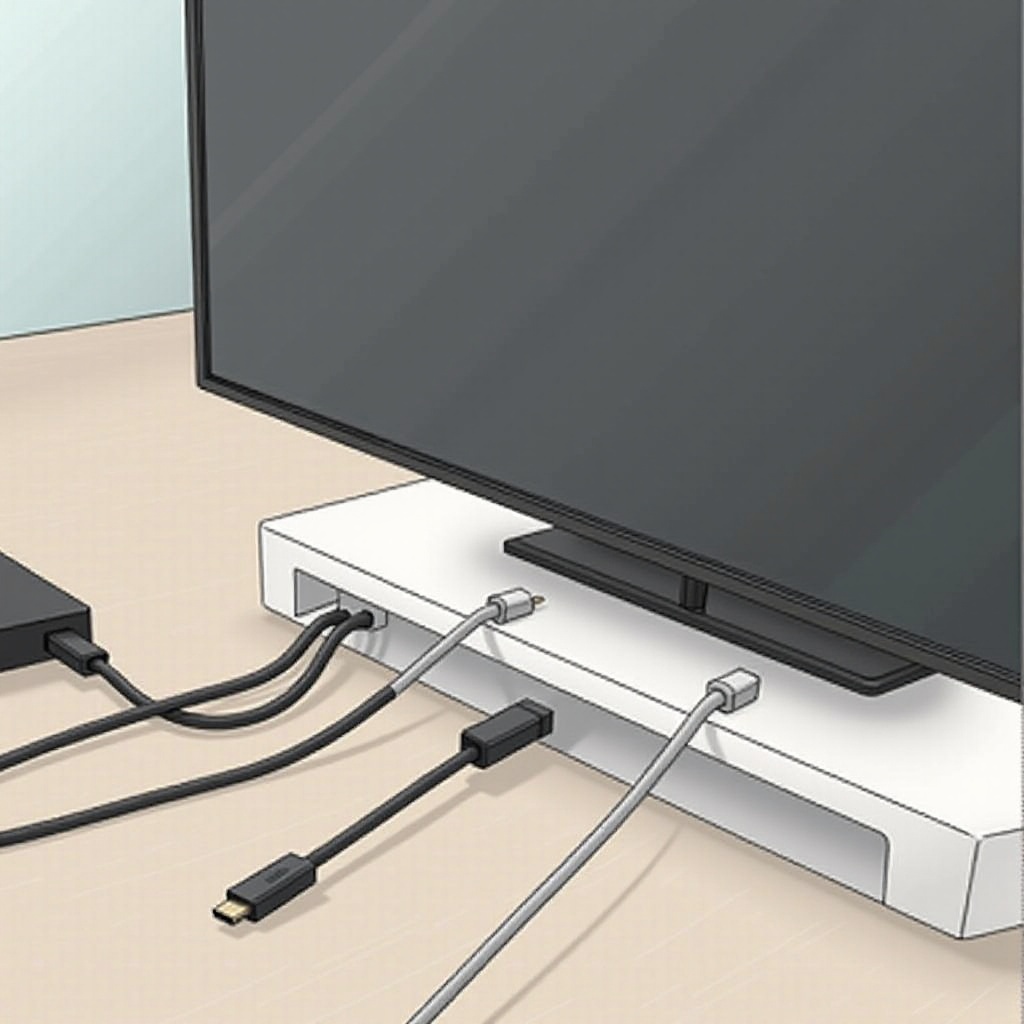
HDMI provides the highest quality in both video and sound. If your TV has an HDMI port, use this method:
- Plug one end of the HDMI cable into the HDMI Out port on the PS3.
- Connect the other end of the HDMI cable to an HDMI In port on your TV.
Using AV Multi Out
If HDMI is not an option, you can use the AV Multi Out connector:
- Insert the AV Multi Out cable into the corresponding port on the PS3.
- Connect the other ends of the AV cable to the matching colored sockets on your TV.
Alternative Connections for Older TVs
For TVs without HDMI or AV inputs, consider using an S-Video or SCART adapter. Although less common, these inputs are available on some older TV models.
Familiarizing yourself with these connection methods ensures you have chosen the best option based on your equipment, paving the way for a seamless setup.
Step-by-Step Connection Guide
To maximize your PS3 experience, follow this detailed guide for connecting your console to the TV:
HDMI Connection Step-by-Step
1. Ensure both the PS3 and TV are turned off and unplugged.
2. Connect the HDMI cable as described in the HDMI Connection section.
3. Power on the TV and set it to the correct HDMI input.
4. Turn on the PS3. The console should automatically detect the HDMI connection.
AV Connection Step-by-Step
1. Power off both the TV and PS3.
2. Connect the AV Multi Out cable to the PS3 and the corresponding AV inputs on the TV.
3. Switch the TV to the appropriate AV input.
4. Turn on the PS3 and adjust the display settings if necessary.
After successfully connecting your PS3, you might encounter some issues. Let’s explore some common problems and their solutions.
Troubleshooting Common Issues
Even with preparation, issues may arise. Here’s how to resolve typical problems when connecting a PS3:
No Signal or Display Problems
If the TV screen is blank:
– Verify all cable connections.
– Make sure the TV is set to the correct input source.
– Restart both the PS3 and the TV.
Sound Configuration Challenges
If there’s no sound:
– Check the audio settings on your PS3.
– Confirm that the sound output format matches the connected cable (HDMI or AV).
Troubleshooting these issues can enhance your overall gaming experience. Once resolved, it’s time to fine-tune your system for optimal performance.
Optimizing Your PS3 and TV Settings
Adjusting the settings on your PS3 and TV can greatly improve your gaming experience. Here’s how:
Adjusting Video Settings
Navigate to ‘Settings’ > ‘Display Settings’ on the PS3 menu and select:
– Video Output Settings: Choose HDMI if available.
– Resolution: Adjust to the highest supported resolution of your TV.
Configuring Audio Output
Under ‘Sound Settings’:
– For HDMI, select automatic settings.
– For AV, ensure the audio output matches your connection type.
With your system optimally configured, you’re all set to enjoy an immersive gaming experience.
Conclusion
Connecting a PS3 to your TV doesn’t have to be complicated. By following the steps outlined in this guide, using the correct cables, and choosing the right connection method, you can enjoy a seamless gaming experience. With potential issues addressed and settings optimized, you are ready to dive into the world of PlayStation gaming brilliantly.
Frequently Asked Questions
What cables do I need to connect a PS3 to my TV?
You will need either an HDMI cable for modern TVs or an AV cable if your TV lacks HDMI ports.
How can I improve the picture quality of my PS3 on my TV?
Set your PS3’s video output settings to the highest possible resolution that your TV supports.
Why is my PS3 not showing up on my TV screen?
Check all cable connections, ensure the correct input is selected, and restart both the PS3 and TV.