
Sharing your location from an iPhone ensures safety and simplifies meetups with friends and family. Knowing how to efficiently text your location enhances personal security and connectivity. This guide examines several effective methods of sharing your location through iMessage, Apple Maps, and Google Maps, ensuring seamless communication.
Understanding iPhone Location Services
Before diving into the different ways to text your location, it is essential to understand how iPhone location services work. They rely on GPS, Wi-Fi networks, and Bluetooth to provide accurate location data.
How Location Services Work on iPhone
iPhone utilizes a combination of GPS, Wi-Fi, and cellular networks for precise positioning:
- GPS: Delivers accurate location data using satellite signals.
- Wi-Fi: Enhances accuracy via local Wi-Fi networks.
- Cellular Networks: Supplies location data through cell towers, especially when GPS is unavailable.
Managing Privacy Settings for Location Sharing
Proper configuration of location settings is vital for privacy and function:
- Open Settings: Access ‘Settings’ on your iPhone.
- Select Privacy & Security: Click on ‘Location Services.
- Customize Permissions: Adjust which apps can access your location and set them to ‘While Using the App’ to maintain a balance between functionality and privacy.
With these settings adjusted, you’re ready to explore methods of location sharing.
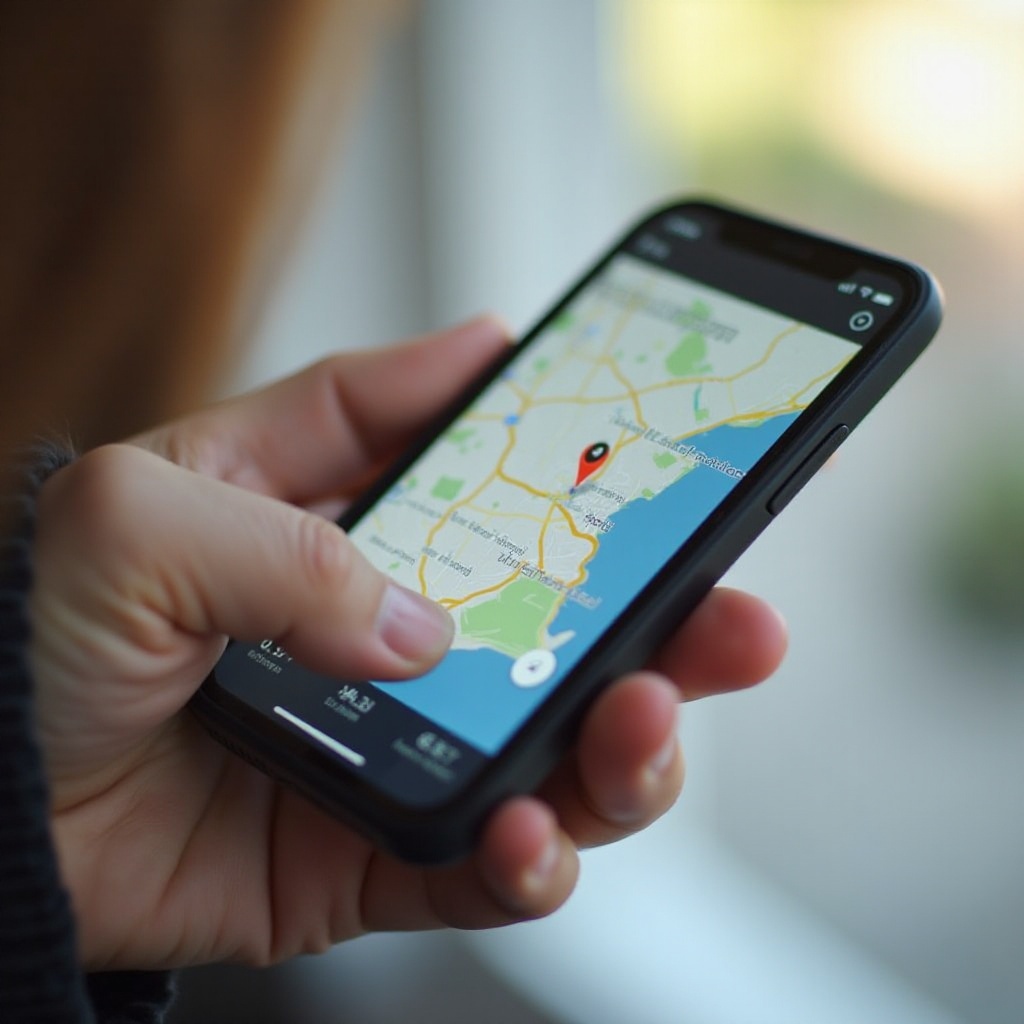
Method 1: Sending Location via iMessage
iMessage offers a straightforward approach to sharing your location with anyone in your contact list. It is built into the iPhone, eliminating the need for additional apps.
Opening iMessage
- Launch the Messages app on your iPhone.
- Open an existing conversation or create a new one by tapping the new message icon.
Sending Your Current Location
- Tap the ‘i’ icon at the top of the conversation screen.
- Select ‘Send My Current Location’ to send your location instantly.
Sharing Live Location
For ongoing needs, iMessage provides a live location-sharing feature:
- Tap ‘Share My Location.’
- Choose the duration for sharing: 1 Hour, Until End of Day, or Indefinitely.
Through iMessage, keeping family and friends updated about your whereabouts is quick and easy.
Method 2: Using Apple Maps to Share Location
Apple Maps offers another effective tool for sharing locations, providing precise map-based functionality.
Opening Apple Maps
- Open the Apple Maps app on your device.
- The map displays your current location using GPS.
Finding and Sharing Current Location
- Tap the blue dot that marks your current location.
- Choose Share My Location from the options.
- Select how to send the location: via messages, email, or third-party apps.
Using Alternative Message Platforms
Understanding how to integrate Apple Maps with different apps can prevent connectivity issues, ensuring your information reaches the intended recipient.
Using Apple Maps will give you a dependable way to guide contacts, both near and far.
Method 3: Sharing Location with Google Maps
Google Maps remains a popular choice for iPhone users, thanks to its detailed maps and wide-reaching platform compatibility.
Benefits of Using Google Maps
- Cross-Platform Compatibility: Allows sharing with users on Android and non-Apple devices.
- Robust Mapping: Provides comprehensive search and additional geographic tools.
Step-by-Step Guide to Share Location
- Open Google Maps on your iPhone.
- Tap on the blue dot indicating your location.
- Choose ‘Share your location.’
- Set the duration and select the app or contact to send your location to.
Managing Location Sharing Settings
Secure and customize your Google Maps location-sharing experience:
- Access Settings within Google Maps.
- Adjust Location Sharing parameters to better control security and sharing options.
With Google Maps, you can easily connect across different device platforms while ensuring precise location information.
Troubleshooting Common Issues
Location-sharing functions might occasionally experience issues. Address these common problems to ensure uninterrupted sharing:
Location Sharing Not Working
- Restart iPhone: A reboot can solve minor glitches.
- Update Apps: Keep iMessage, Apple Maps, and Google Maps updated to the latest versions for best performance.
Adjusting Location Service Settings
Verify your location permissions:
- Navigate to Settings > Privacy & Security > Location Services.
- Check that each app has the appropriate location access configuration.
Ensuring Compatibility with Different Apps
- Confirm third-party messaging apps support location-sharing.
- Regular updates may be required for optimal functioning.
Resolving these issues will offer a smooth and efficient location-sharing experience.
Conclusion
Effectively sharing your location using an iPhone is a practical skill that enhances safety and convenience. Whether you use iMessage, Apple Maps, or Google Maps, each method has unique benefits. Ensure your location is shared timely and accurately with these straightforward steps.
Frequently Asked Questions
How can I ensure my location is accurate on iPhone?
Ensure GPS is active, and your device has a good Wi-Fi or cellular signal. Keep your software and apps updated for optimal accuracy.
Can I share my location with Android users?
Yes, using Google Maps allows you to share locations with Android users, as it is compatible across platforms.
How do I stop sharing my location temporarily?
To stop sharing, open the relevant app, go to location-sharing settings, and select ‘Stop Sharing.’ This will instantly halt location sharing.