
Introduction
When applications become unresponsive, it disrupts productivity and causes frustration. Knowing how to efficiently force quit applications in Windows is essential for maintaining a smooth workflow. This guide provides you with versatile methods to resolve non-responsive applications and key strategies to prevent future occurrences.

Understanding When to Force Quit Applications
Sometimes it’s necessary to force quit an application, but knowing when to act is crucial.
Signs of Unresponsive Applications
Recognizing the symptoms helps you decide if force quitting is needed:
– The app freezes and doesn’t respond.
– Keyboards and mouse inputs are ignored.
– The title bar shows ‘Not Responding’.
Weighing the Risks and Benefits
While force quitting can solve the problem, it risks losing unsaved work. However, it instantly restores system responsiveness, an important consideration for many users.
Knowing when to proceed with force quitting simplifies your decision-making. Now, let’s explore the effective methods you can use to accomplish this.
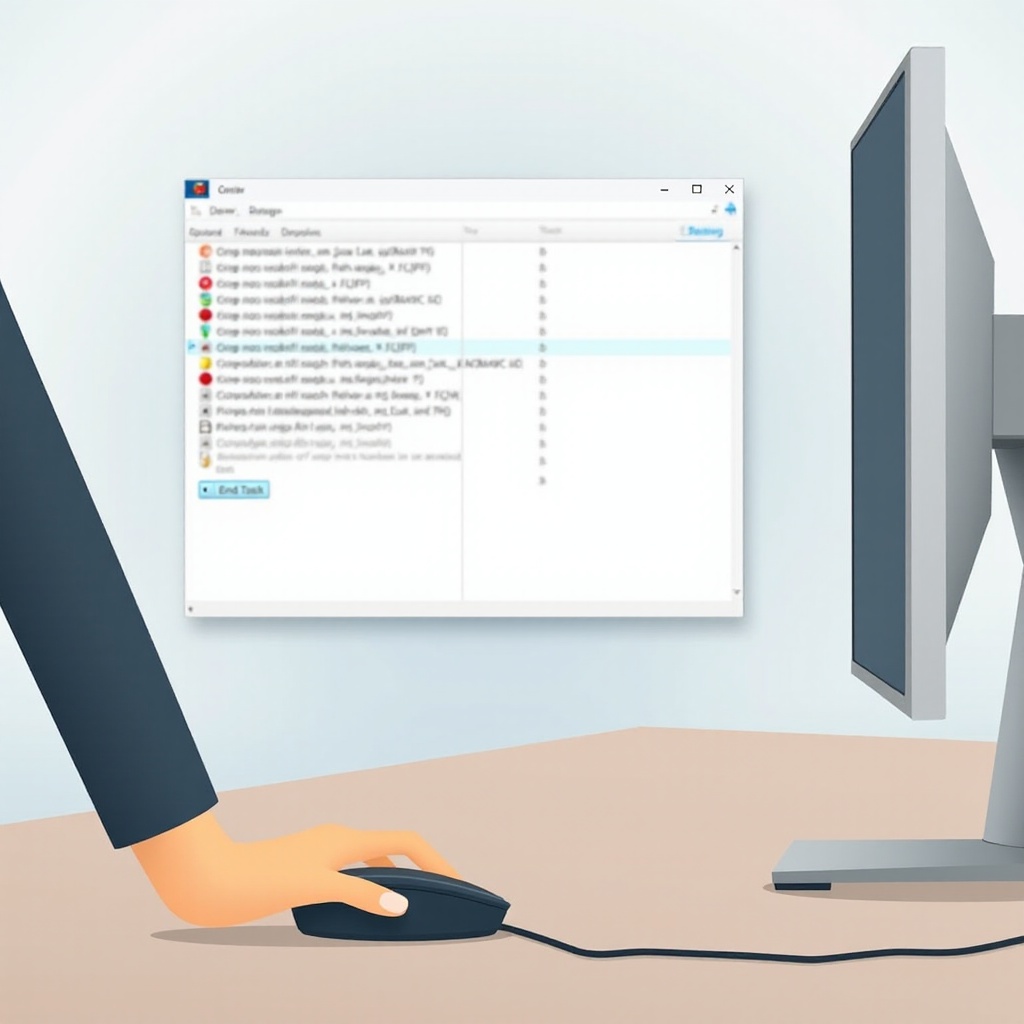
Methods to Force Quit Applications in Windows
Windows offers various tools to assist you in efficiently force quitting applications.
Using Task Manager
The Task Manager is a fundamental resource for managing applications:
- Press
Ctrl + Shift + Escto open Task Manager instantly. - Go to the ‘Processes’ tab.
- Locate and select the non-responsive application.
- Click ‘End Task’ to close the program.
The Task Manager provides a straightforward approach, visually listing all active processes to quickly identify problems.
Using Command Prompt
For users comfortable with command-line inputs:
- Invoke the ‘Run’ dialog with
Win + R, type ‘cmd’, and press Enter. - Enter ‘tasklist’ to display a list of all active processes.
- Identify the desired application process.
- Enter ‘taskkill /IM [application name].exe /F’ to terminate it.
Command Prompt is particularly handy when graphical interfaces are not responding properly.
Using Windows PowerShell
PowerShell is a powerful tool for managing system processes:
- Search for ‘PowerShell’ in the Start menu and launch it.
- Type ‘Get-Process’ to view a list of running processes.
- To stop an application, enter ‘Stop-Process -Name ‘processname’ –Force’.
PowerShell extends beyond simple task termination by offering advanced scripting capabilities.
With these methods at your disposal, you can swiftly resolve application freezes. However, alternatives that do not involve force quitting should also be considered.
Alternative Solutions to Force Quitting
Consider these options before resorting to force quitting.
Restart from Start Menu
- Open the Start Menu.
- Find the problematic application.
- Choose ‘Restart’ or close and reopen the application.
Checking for Software Updates
To eliminate bugs, ensure your software is up to date:
– Check the application’s settings or visit Windows Update.
– Install any pending updates to enhance application compatibility and performance.
Rebooting Your Computer
As a last resort:
- Save all your work.
- Restart your computer to refresh all processes.
Preventative strategies are essential to mitigate recurring issues and ensure a smoother operation.
Preventative Measures to Reduce Application Freezing
Implementing these practices helps dodge future application trouble.
Managing System Resources Efficiently
Regularly clean your system of unnecessary files, streamline startup programs, and consider hardware upgrades if resources are consistently overused.
Regularly Updating Software and Drivers
Keep all software and drivers updated to fix bugs and improve system compatibility. Automate updates to ensure you don’t miss critical patches.
Routine System Maintenance
Perform regular antivirus scans, registry cleaning, and disk defragmentation to maintain your computer’s long-term health.
Implementing these preventative measures can minimize the need for force quitting applications, leading to a more stable Windows environment.

Conclusion
Being familiar with the ways to handle unresponsive applications boosts your confidence in managing Windows systems. Through a combination of force quitting techniques and diligent maintenance practices, you can ensure a smoother, more reliable computing experience. Stay proactive in maintaining your system to avoid unnecessary disruptions.
Frequently Asked Questions
How do I open Task Manager quickly?
You can quickly open Task Manager by pressing ‘Ctrl + Shift + Esc’ or by pressing ‘Ctrl + Alt + Delete’ and selecting ‘Task Manager’.
What should I do if an app keeps freezing?
If an app frequently freezes, update it, check for system updates, or reach out to the application’s support for more assistance.
Can force quitting cause data loss?
Yes, force quitting can lead to data loss if unsaved work is interrupted, so it’s best to save your progress regularly.