
Introduction
Diving straight into a world of convenience, Samsung TVs with integrated internet browsers offer an enhanced entertainment experience. This feature allows you to surf the web effortlessly from your television, offering quick access to information while enjoying your favorite shows. Whether you’re streaming the latest series or casually browsing, the Samsung TV browser is a robust addition that amplifies your television’s capabilities.

Understanding the Samsung TV Internet Browser
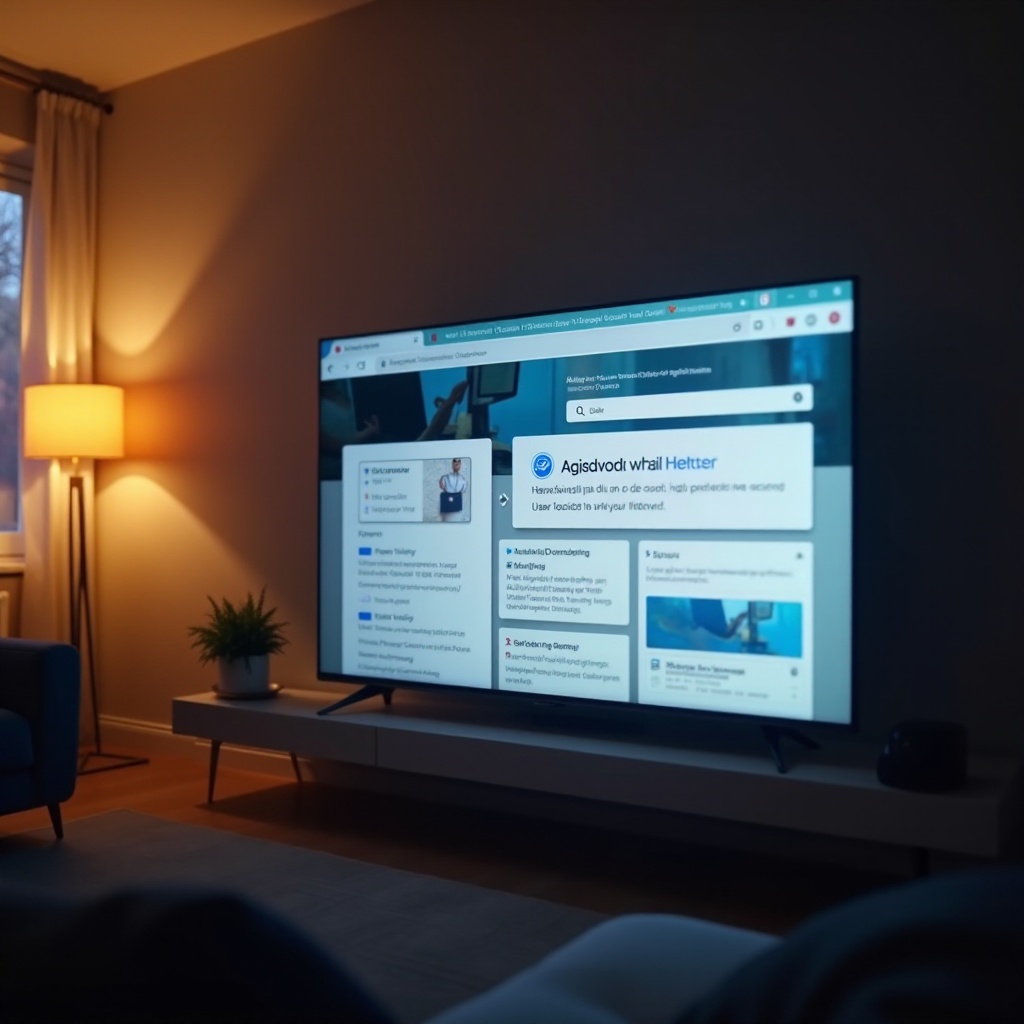
The Samsung TV internet browser offers a familiar experience with added convenience, mirroring the functionalities found in standard browsers on laptops and smartphones. This feature transforms your screen into an interactive portal, making it easy to access social media, news, and multimedia content sans additional gadgets. Grasping its full potential will let you tap into the vast resources of the online world seamlessly.
Setting Up and Launching the Browser
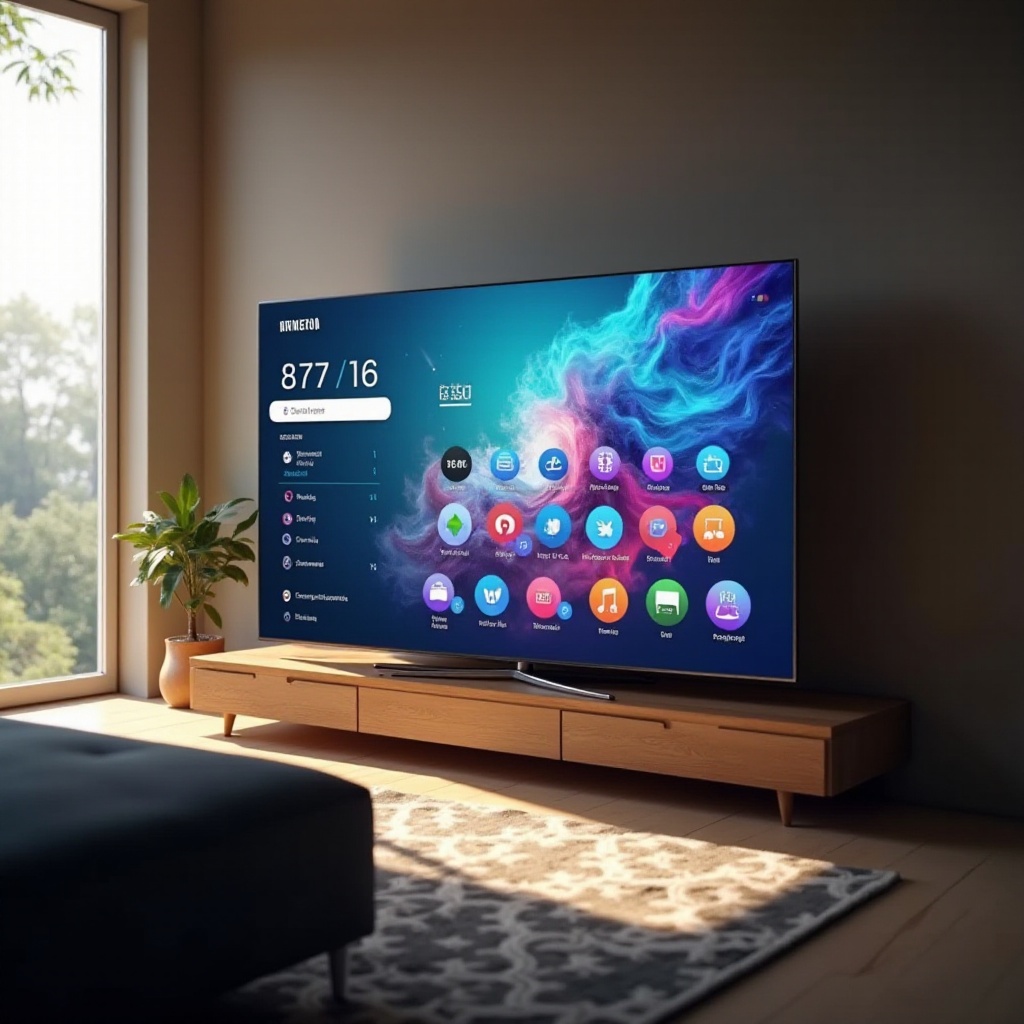
Setting up your TV’s internet browser is simple and intuitive:
- Connect your Samsung TV to a reliable Wi-Fi connection.
- Access the Smart Hub menu using your TV remote.
- Find and select the ‘Internet’ app from the Apps section.
- Launch the internet browser to start exploring.
These steps ensure you’re just a few clicks away from enjoying browsing directly from your TV.
Customizing Your Browser for Optimal Use
After launching the browser, tailor it to suit your needs for a better experience:
- Homepage: Set your favorite site as the homepage for quick access.
- Bookmarks: Save frequently visited websites for one-click access.
- Display Settings: Adjust zoom and font size for better readability.
Customizing these elements ensures your TV browsing experience is seamless and enjoyable.
Enhancing Your Browsing Experience
To make the most out of the Samsung TV internet browser, consider maximizing its functionalities:
- Website Optimization: Use websites optimized for TV browsers for the best experience.
- Simultaneous Streaming and Browsing: Some Samsung TVs allow multitasking, letting you stream movies while checking your emails simultaneously.
- Smart Home Integration: Connect your TV with other smart home devices for enhanced control and automation, including voice commands for easy browsing.
These features transform your TV into a multifunctional device, broadening the scope of your interactive experience.
Troubleshooting Common Browser Issues
Encountering technical issues? Here are some common problems and solutions:
- Slow browsing speeds: Check your internet connection and close unnecessary background apps.
- Website compatibility issues: Ensure your TV’s firmware is updated to handle the latest web technologies.
- Browser crashes or freezing: Try restarting the TV or clearing the browser’s cache to resolve these problems.
Proper maintenance and updates can prevent most disruptions and ensure a smooth browsing experience.
Tips for Safe and Secure Browsing
Maintaining security is crucial. Follow these guidelines for safe browsing:
- Secure Connections: Always use a secure, password-protected Wi-Fi network.
- Avoid Malicious Sites: Refrain from clicking suspicious links or downloading untrustworthy content.
- Regular Software Updates: Keep your TV’s software up to date to protect against new security threats.
These measures safeguard your information, ensuring a secure browsing session on your TV.
Conclusion
The Samsung TV’s internet browser is a gateway to a world of online content and convenience. By understanding its functions, optimizing its settings, and integrating it with your smart home, your television transforms into a central hub for both enjoyment and information gathering. As you adapt to the possibilities it offers, your entertainment will resonate more with modern living.
Frequently Asked Questions
How do I update the internet browser on my Samsung TV?
Most Samsung TVs automatically update the browser with firmware updates. Ensure your TV is set to auto-update, or check manually via Settings > Support > Software Update.
Can I use any website on the Samsung TV browser?
While most websites are accessible, some may not function optimally due to specific compatibility requirements or limitations of the TV browser.
What steps should I take if the browser is not responding?
If the browser is unresponsive, try restarting your TV or clearing the cache in the browser’s settings. This usually resolves minor performance issues.