
Introduction
Managing user accounts on Chromebooks is crucial for device security and efficient operation. Whether in a home, school, or business environment, knowing how to remove an administrator is essential for maintaining control over user access. This guide will explore every step and consideration needed to remove an administrator account, enhancing your device’s security and functionality.
Understanding Chromebook Administrator Accounts
Administrator accounts on Chromebooks have the power to control settings, install apps, and manage other user accounts. These roles are typically filled by parents in family settings, while IT departments or supervisors handle them in educational or business settings. Understanding their comprehensive permissions highlights the importance of knowing when and how to remove these accounts. As we explore the reasons for removal, a clear picture emerges of the pivotal role administrators play in Chromebook management.
Reasons to Remove an Administrator
There are multiple reasons for removing an administrator from a Chromebook. Often, it’s necessary when transferring ownership, ensuring that previous administrators no longer have access to protect personal data and privacy. Organizational changes, such as shifting roles or responsibilities, might also necessitate account removal. Streamlining administrative access reduces security risks, reinforcing user and device management.
Pre-removal Considerations
Before removing an administrator, several preparatory steps are crucial. Firstly, back up any critical data. Removing an account can lead to data associated with that user being lost. Additionally, ensure you have a backup administrator account ready to assume control. These steps prevent data loss and capability shortfalls, allowing seamless transition to the next phase of account management.
Step-by-Step Guide to Remove an Administrator
- Accessing Your Chromebook Settings:
- Log into your Chromebook with an existing administrator account.
- Navigating to the ‘People’ Section:
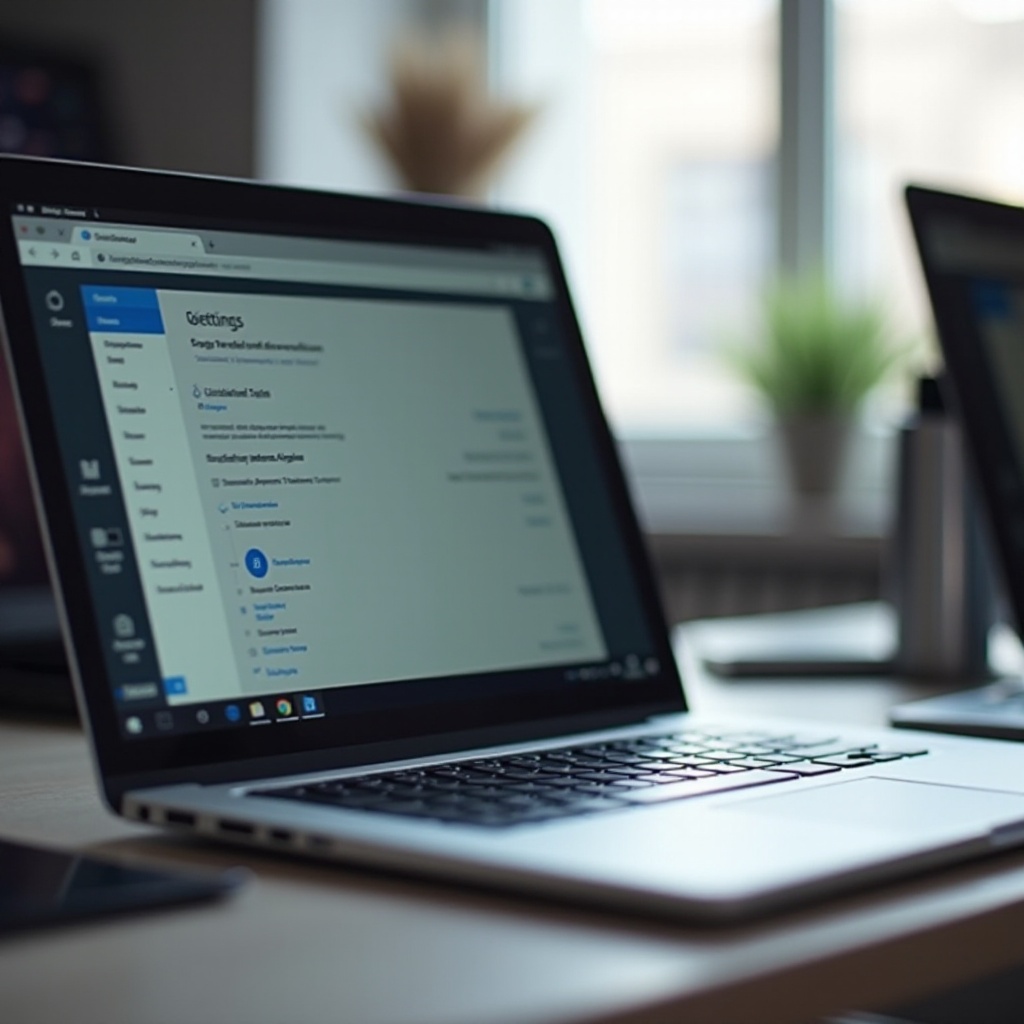
- Click the time in the bottom-right corner and select the gear icon to open Settings.
- Locate the ‘People’ section in the menu.
- Removing the Administrator Account:
- Find the user you wish to remove and click the ‘Remove’ option.
- Confirm the removal by following on-screen prompts.
This procedure effectively removes the designated account, streamlining security and functionality.
How to Reassign Administrator Roles
After removal, assign a new administrator to maintain control and management over the device. Here’s how:
– Log in with an account authorized to update user roles.
– Access the ‘People’ section under Settings.
– Choose a suitable user to be the administrator, ensuring they are trustworthy and knowledgeable.
– Adjust their permissions accordingly.
Assigning the right person empowers efficient Chromebook management and user oversight.
Troubleshooting Common Issues
Issues may arise during this process. Here’s how to handle typical problems:
– Option Not Available: Double-check if you are using an account with administrative rights. Only administrators can remove other accounts.
– Error Handling: If errors occur, restart the Chromebook or check your network connection. Connectivity can sometimes disrupt the account management features.
Swiftly addressing these issues helps maintain the Chromebook’s operability and prevents undue delays.
Ensuring Chromebook Security and Efficiency Post-Removal
Post-removal, it’s vital to continue maintaining your Chromebook’s security settings. Regularly updating software helps protect against vulnerabilities. Periodically review user permissions to ensure alignment with current needs and security standards. This diligence preserves security and ensures your Chromebook runs efficiently.
Conclusion
Effectively managing Chromebook administrator accounts is key to maintaining device security and efficiency. Both removing unnecessary accounts and reassigning roles as needed support the ongoing security and functionality of your device. Keeping these practices in mind ensures a well-organized, safe, and responsive Chromebook environment.
Frequently Asked Questions
What if I can’t remove the administrator account?
If you face issues removing it, ensure you are logged in with another admin account. If issues persist, consider a ‘Powerwash’ factory reset, but do note this resets the whole device.
How do I choose a new administrator?
Select a knowledgeable and trustworthy user who understands the tasks involved in managing a Chromebook efficiently.
How often should I review my Chromebook’s admin roles?
Review roles every few months or with personnel changes to ensure administrative roles align with security needs.